> ## Documentation Index
> Fetch the complete documentation index at: https://docs-dev-feat-docs-5554-self-service.mintlify.site/llms.txt
> Use this file to discover all available pages before exploring further.
# Activer les connexions d’entreprise
> Décrit comment activer les connexions d’entreprise pour les applications à l’aide d'Auth0 Dashboard.
Vous pouvez activer les connexions d’entreprise pour les applications à l’aide d'Auth0 Dashboard. Pour activer votre connexion d’entreprise, vous devez déjà l’avoir configurée.
1. Allez dans [Auth0 Dashboard > Authentification > Entreprise](https://manage.auth0.com/#/connections/enterprise) et sélectionnez le type de connexion à afficher.
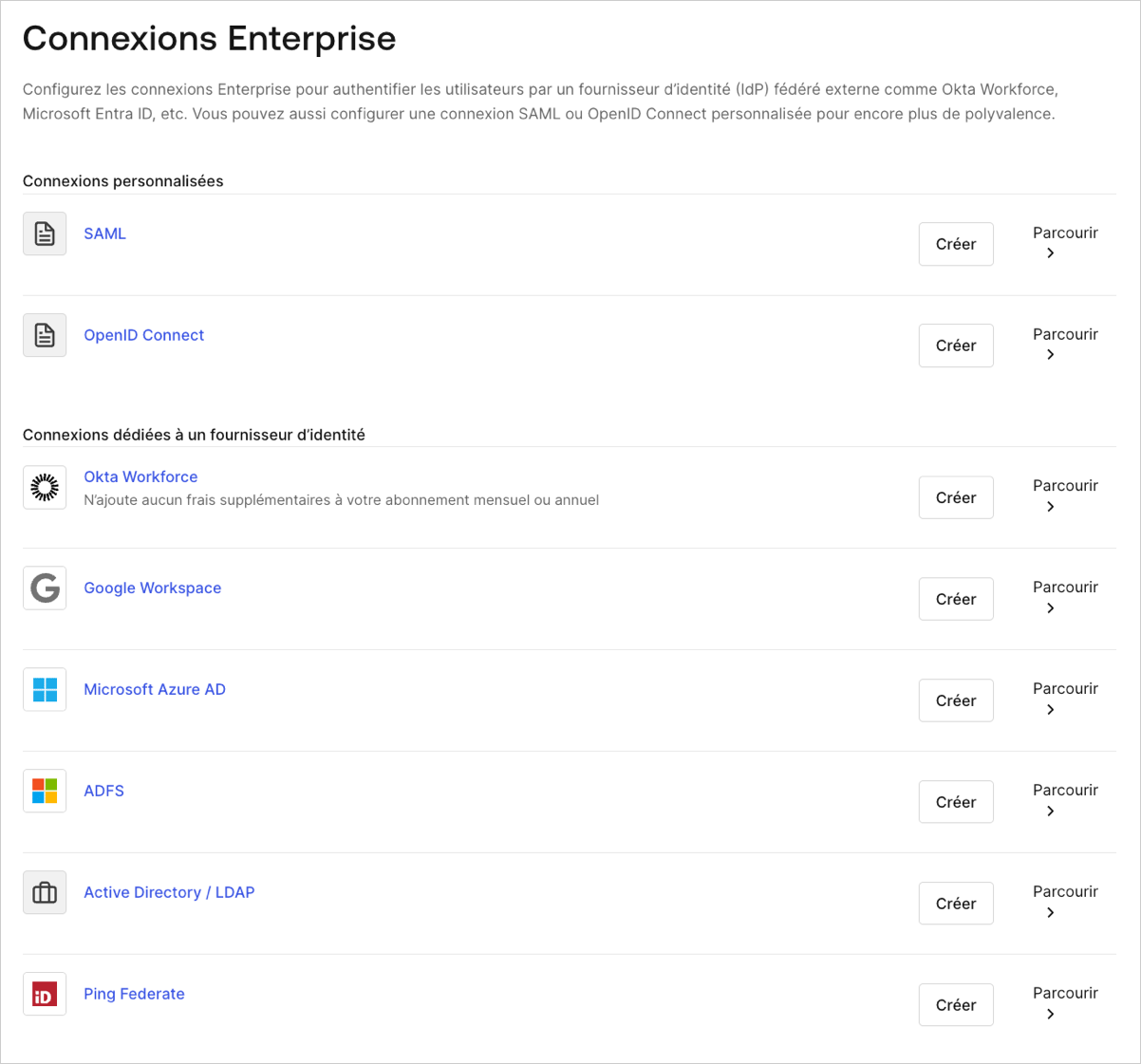 2. Sélectionnez le nom de la connexion à afficher.
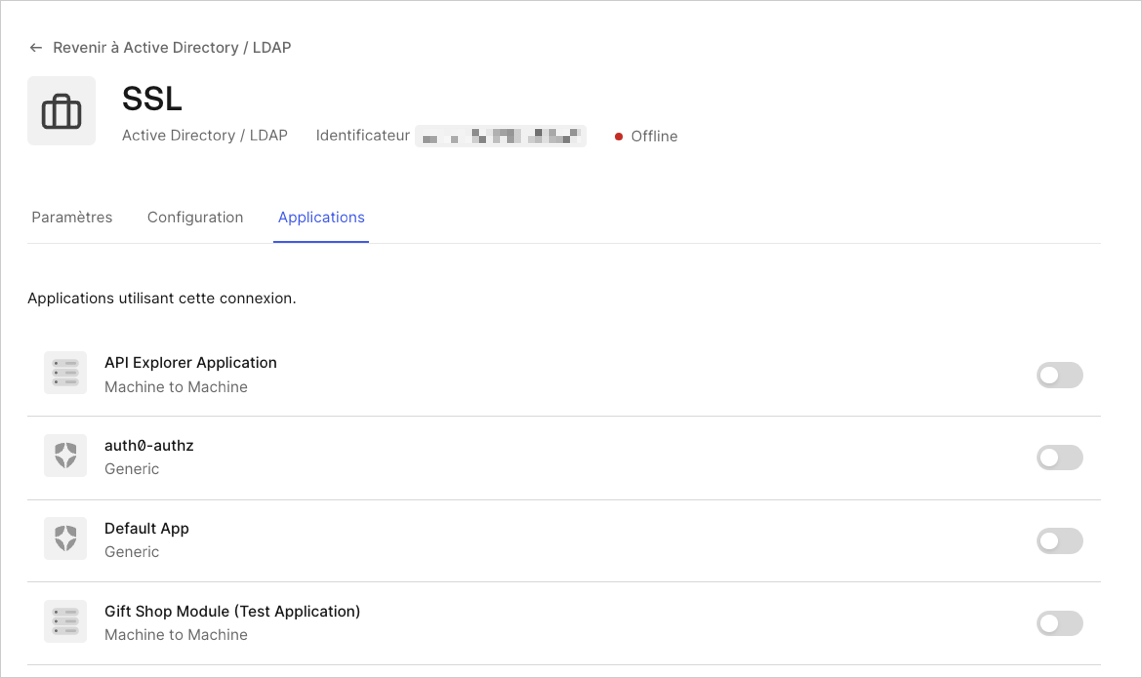
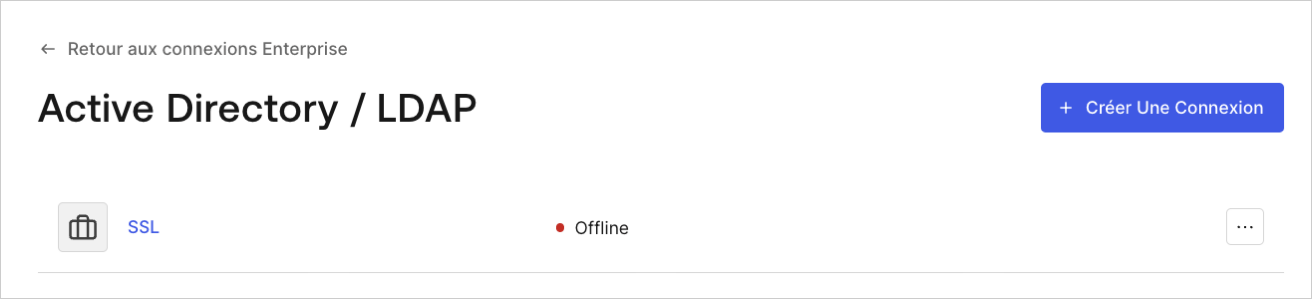 3. Sélectionnez l’affichage **Applications**, et activez ou désactivez la connexion pour la ou les applications appropriées.
 Lorsque vous configurez votre connexion IdP d’entreprise, rappelez-vous que le paramètre de `connection` passé au point de terminaison `/authorize,` `/whr,` ou `/wsfed` Auth0 se redirigera vers l’IdP amont, **sauf** si la connexion est effectuée via une base de données ou Active Directory.
## En savoir plus
* [Tester les connexions d’entreprise](/docs/fr-ca/authenticate/identity-providers/enterprise-identity-providers/test-enterprise-connections)
Lorsque vous configurez votre connexion IdP d’entreprise, rappelez-vous que le paramètre de `connection` passé au point de terminaison `/authorize,` `/whr,` ou `/wsfed` Auth0 se redirigera vers l’IdP amont, **sauf** si la connexion est effectuée via une base de données ou Active Directory.
## En savoir plus
* [Tester les connexions d’entreprise](/docs/fr-ca/authenticate/identity-providers/enterprise-identity-providers/test-enterprise-connections)