

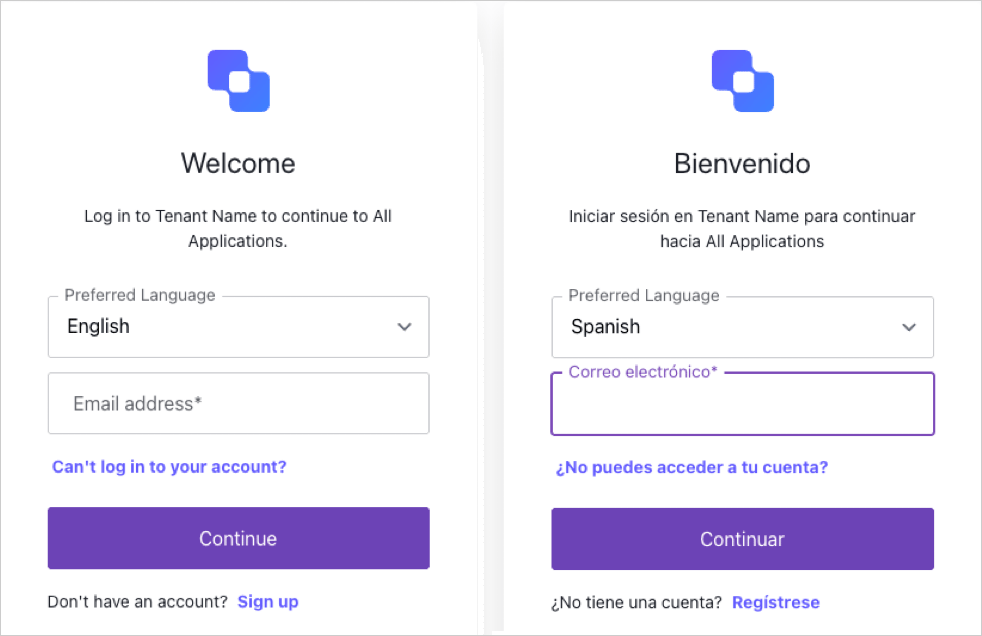
Before you begin
Before you can implement flexible language selection, ensure the following requirements are met:-
Use Universal Login.
- This feature is not available for custom login pages.
- Configure a custom domain.
-
Enable the languages you plan to add to your prompts in your Auth0 tenant.
-
On the Auth0 Dashboard, navigate to Settings > General > Languages and enable one or more desired languages.
- For more information, review Universal Login Internationalization.
-
On the Auth0 Dashboard, navigate to Settings > General > Languages and enable one or more desired languages.
Implement flexible language selection
Setting up flexible language selection includes two primary steps:- Preparing your page template to facilitate language selection.
- Configuring individual prompts to display language selection to users.
Prepare your Universal Login page template
To get started, add the following script to your Universal Login page template to facilitate language selection.Configure individual Universal Login prompts
Next, add language selection to one or more Universal Login prompts by configuring custom prompt partials. Partials refer to custom code inserted into an entry point within a prompt screen, such as the login screen. To learn more, review Customize Signup and Login Prompts. To add language selection to a specific prompt, use the Auth0 to configure custom prompt partials with the following parameters:
Access the sections below to review code samples for different types of Universal Login prompts.
Signup Prompt: Identifier + Password
Signup Prompt: Identifier + Password
To add language selection to the
signup prompt, use the Set partials for a prompt endpoint:Login Prompt: Identifier First
Login Prompt: Identifier First
To add language selection to the
login-id prompt, use the Set partials for a prompt endpoint:Login Prompt: Passwordless (Email)
Login Prompt: Passwordless (Email)
To add language selection to the
login-passwordless-email-code prompt, use the Set partials for a prompt endpoint: